personal settings
Manage basic account information, notifications and preferences, and security settings. After logging in, click "Profile" in the left navigation, or visit /profile directly.
Basic information
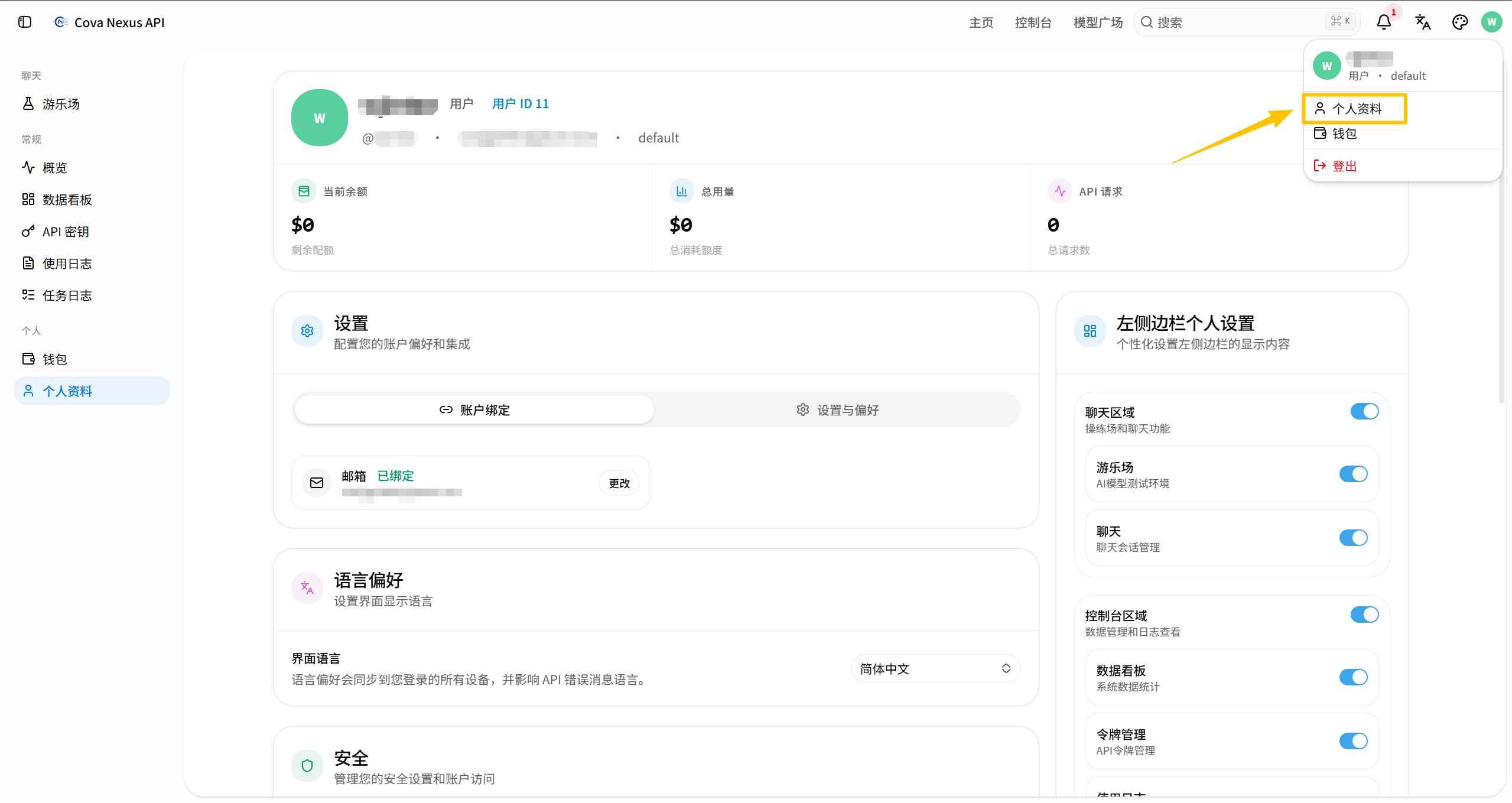
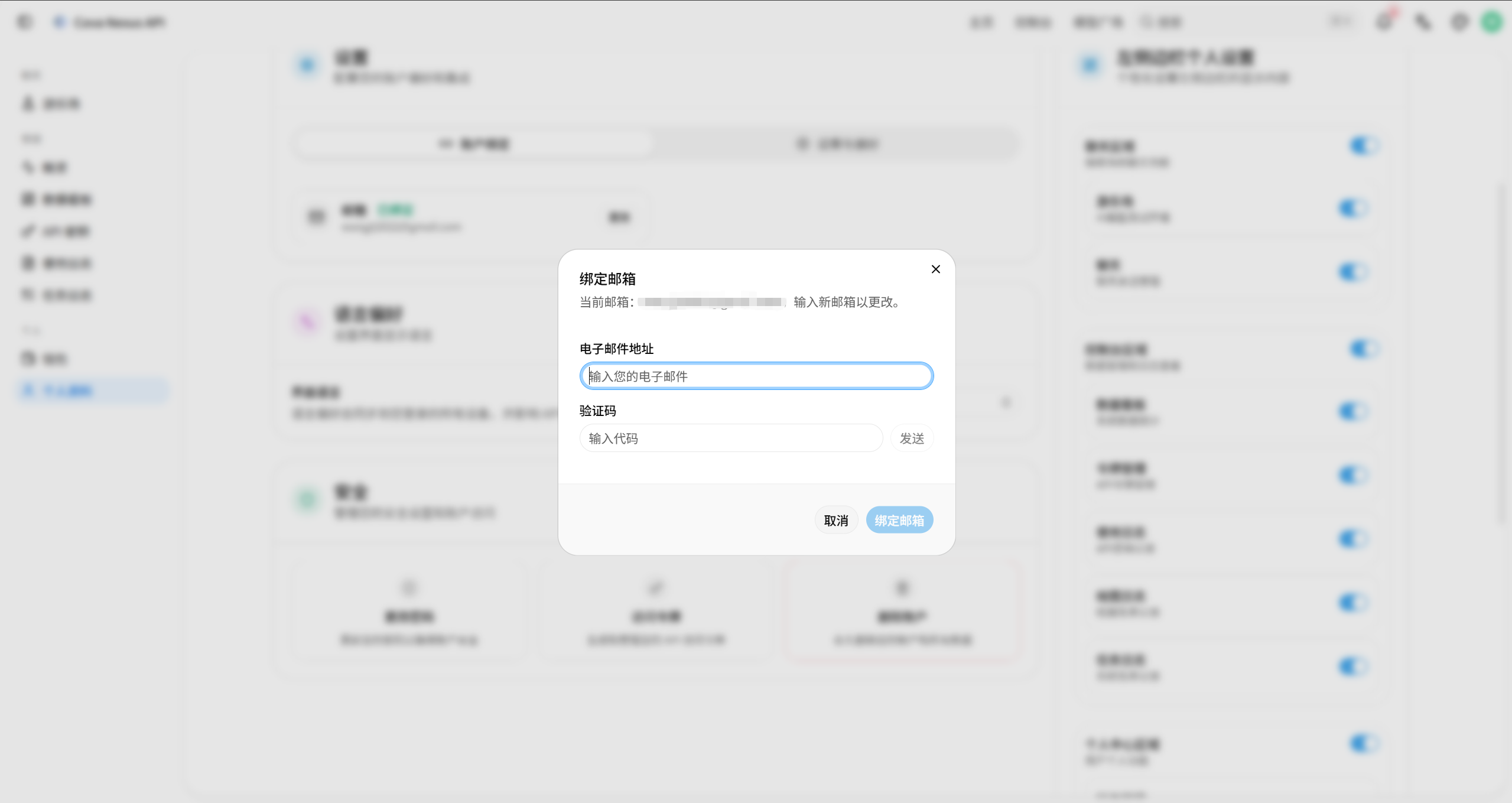
Change the bound email address
Fill in the new email address to be bound in the email input box
Click the "Send" button
Enter the verification code you received and click "Bind Email"
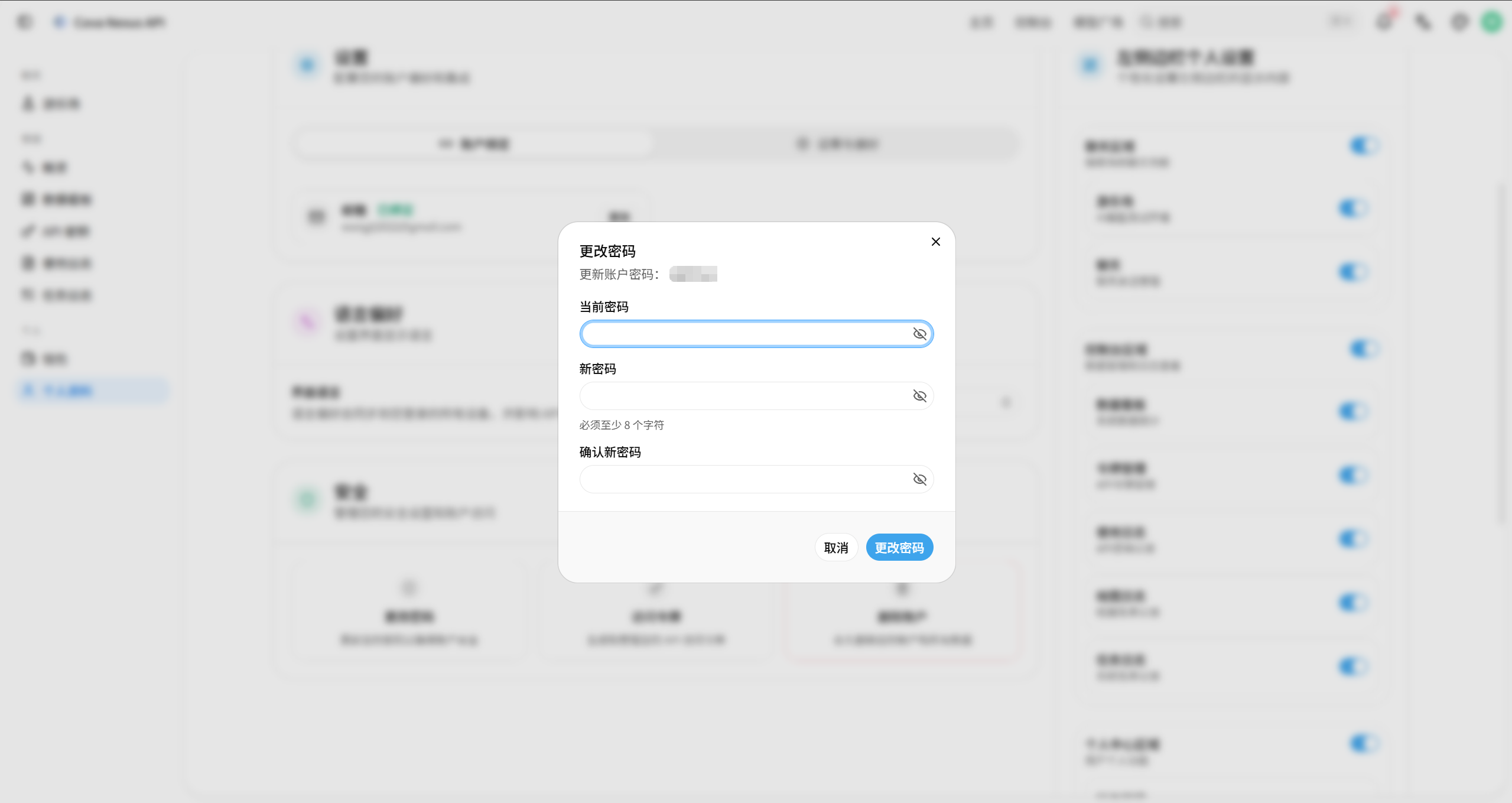
Change password
Fill in the current password, new password, confirm new password, and click "Change Password" to complete the change.
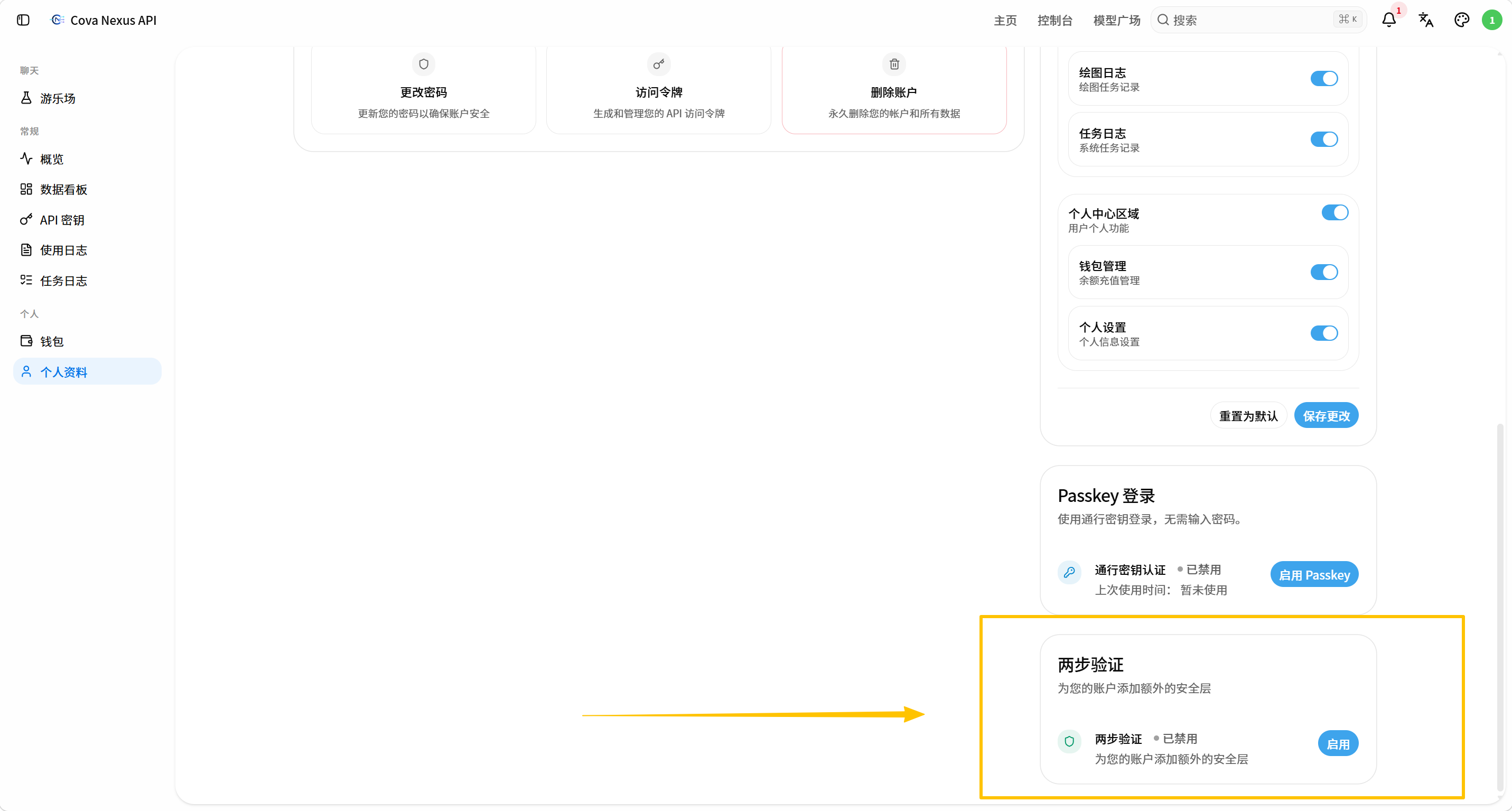
Two-factor authentication (2FA)
After turning on 2FA, you need to enter the dynamic code in the authenticator app in addition to the password each time you log in, which effectively prevents account theft.
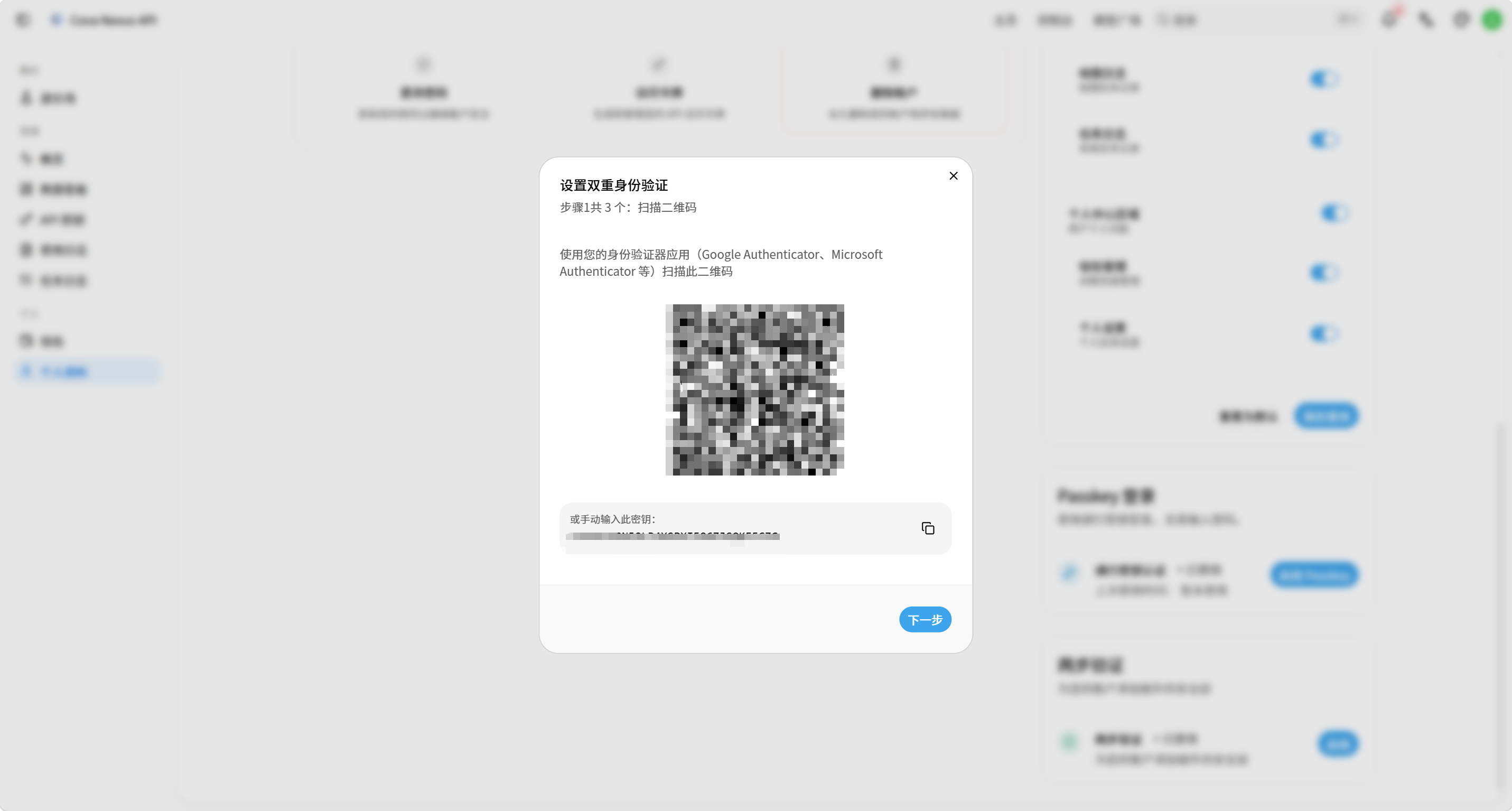
Turn on 2FA
Install the authenticator app on your phone (Google Authenticator or Microsoft Authenticator recommended)
Find the "Two-factor authentication" area on the personal settings page and click "Turn on 2FA"
Use the validator app to scan the QR code displayed on the page, and a 6-digit dynamic code will appear in the app
Fill in the 6-digit dynamic code displayed in the App into the verification box and click "Confirm to Open"
The system displays a set of backup codes. Please take a screenshot or copy and save them immediately for emergency login when the authenticator cannot be used.
Notification settings
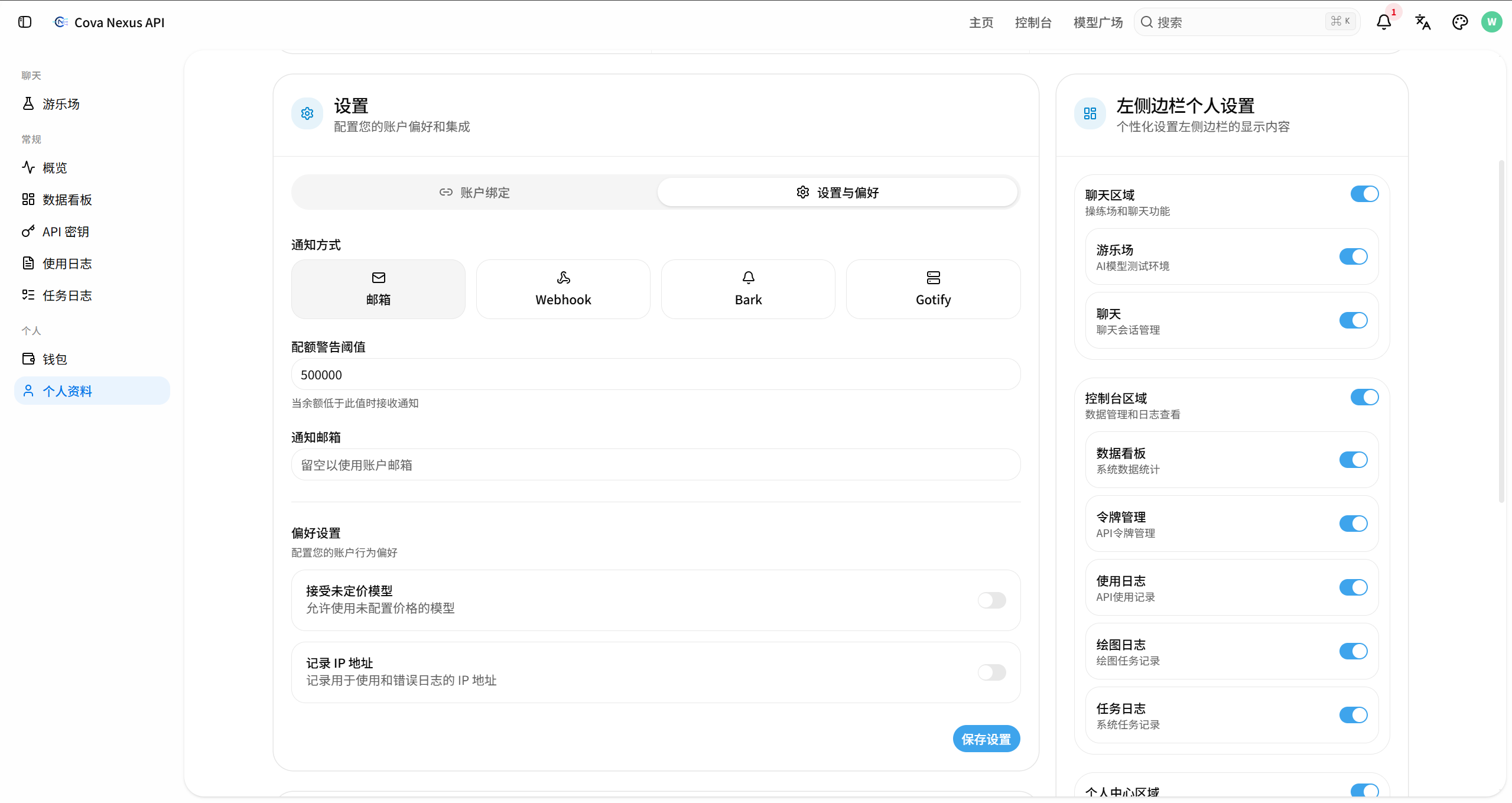
Configure the method and trigger conditions for receiving system notifications on the "Settings and Preferences" tab.
Notification method
The following notification channels are supported, and you can choose according to your needs:
| channel | Description |
|---|---|
| Receive notifications via email | |
| Webhook | Push to custom webhook interface |
| Bark | Push to Bark (iOS push app) |
| Gotify | Push to self-built Gotify server |
Configure notifications
Select Email / Webhook / Bark / Gotify in "Notification Method"
Enter a value in the "Quota Warning Threshold" and receive a notification when the balance falls below this value.
Fill in the email address to receive notifications in "Notification Email". If left blank, use the account email.
Click "Save Settings" to complete the configuration
Preferences
Configure account behavior preferences in the "Preferences" area of the "Settings and Preferences" tab, and click "Save Settings" after modifications to take effect.
Accept unpriced models
Controls whether calling models without configured prices is allowed. When it is turned off, it refuses to call the unpriced model (recommended). When it is turned on, it can use the unpriced model.
Log IP address
Controls whether the source IP address of API calls is logged in usage and error logs. After turning it on, you can view the source IP of each call in the usage log, making it easier to monitor abnormal access and troubleshoot security issues.
Security settings
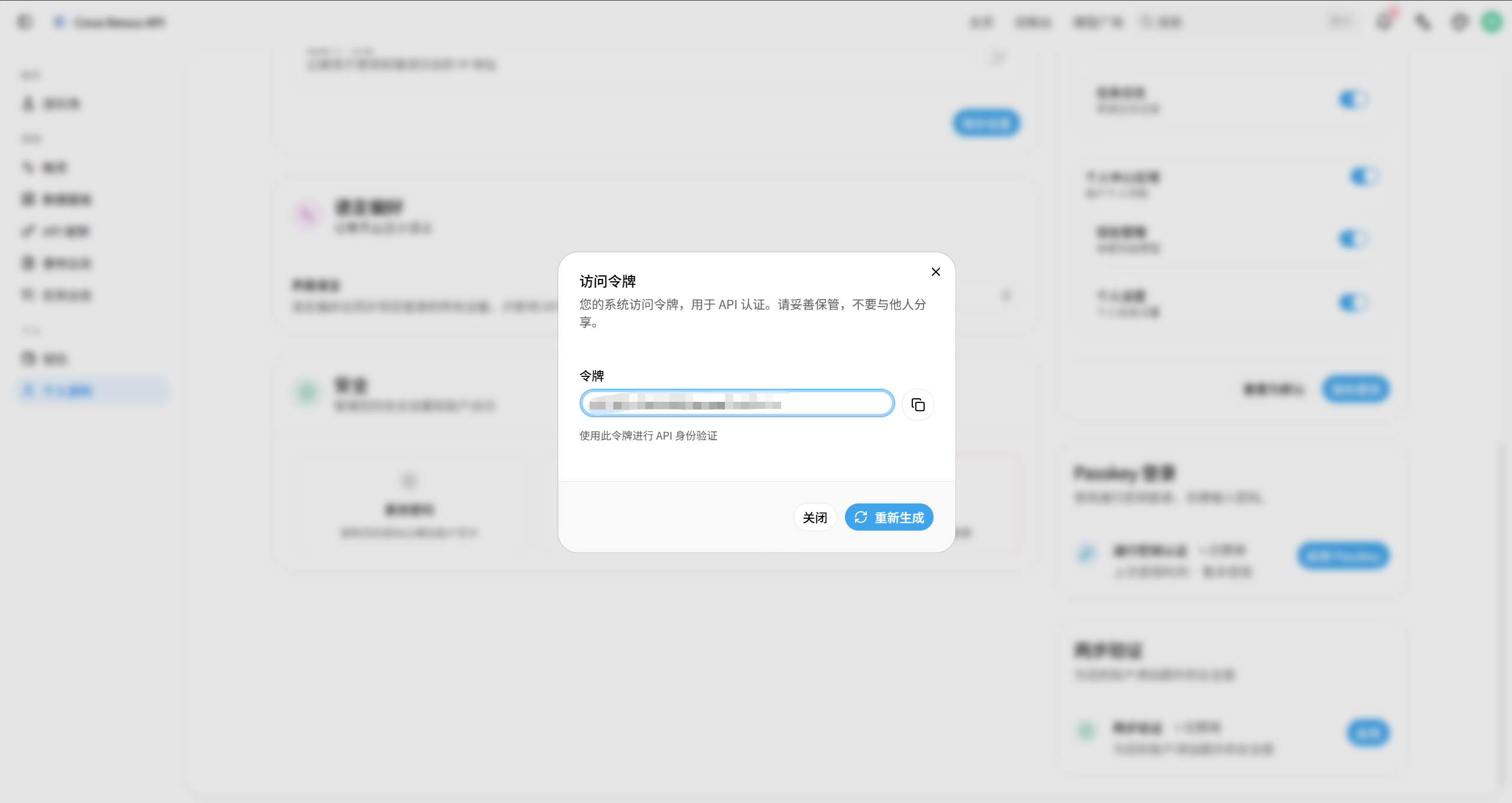
Reset API access token
If you suspect that your API access token has been compromised, you can reset the token:
Find the "Security" area on the personal settings page
Click on the "Access Token" card
The system automatically generates a new token and the old token becomes invalid immediately.